Top 10 Chrome Shortcuts That Will Transform Your Web Browsing Experience
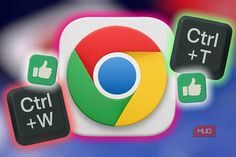
If you spend several hours daily on the Internet, you are probably losing precious time by clicking repeatedly using your mouse. Chrome is one of the most-used web browsers today but not many people realize how much they could benefit from using its powerful keyboard shortcuts.
Here’s the thing – knowing and learning how to use all the amazing Chrome keyboard shortcuts will save you hours each week. You are going to see your efficiency drastically improve, as well. This detailed article highlights the top 10 most important Chrome keyboard shortcuts you need to know.
They are compatible with all platforms such as Windows, Mac OS X and Linux and will take you only a couple of minutes to get used to.
Contents
- 1 The Importance of Keyboard Shortcuts
- 2 Ctrl+Shift+N (or Cmd+Shift+N on Mac): Incognito Window
- 3 Ctrl+Tab and Ctrl+Shift+Tab: Move From One Tab to Another
- 4 Ctrl+w: Close Current Tab
- 5 Ctrl + Shift + t: Reopen last closed tab
- 6 Ctrl + L: Go to the Address Bar
- 7 Ctrl+f: Find on Page
- 8 Ctrl + h: Access Browsing History
- 9 Ctrl+j: Go to Downloads
- 10 Ctrl+b: Toggle Bookmark Bar
- 11 Ctrl+d: Bookmark Current Page
- 12 Bonus Shortcuts for Ultimate Power Users
- 13 Implementation Strategy: From Novice to Expert
- 14 The Cumulative Effect
- 15 Create Your Own Shortcut Cheat Sheet
- 16 Conclusion
- 17 Frequently Asked Questions
- 17.1 Question 1: Will the keyboard shortcuts behave similarly on both Mac and Windows?
- 17.2 Question 2: Is there any way to customize my keyboard shortcuts in Chrome?
- 17.3 Q3: Why doesn’t Ctrl+F work in some websites?
- 17.4 Q4: Is it really going to make me much faster than using a mouse?
- 17.5 Q5: Can I synchronize my bookmarks and shortcuts?
The Importance of Keyboard Shortcuts
Before getting into detail about individual shortcuts, let us explain the importance of them:
- Save time: Studies show that keyboard shortcuts could help one be 20-30% more productive. With 8-hour working days spent at computers, that is up to 2.5 extra hours per day.
- Prevent hand pain: Constantly using your mouse leads to repetitive strain injuries (RSIs). By switching to keyboard control, you will reduce physical effort required from your hands and wrists.
- Stay in the flow: Being engaged in what you are doing helps stay efficient. Interruption, even by moving to use your mouse, stops this process and lowers productivity.
- Be a pro: As a software developer, writer, or other types of office workers, you immediately come across as more proficient just by using these shortcuts.
- Develop muscle memory: After practice, they start being used automatically.
Ctrl+Shift+N (or Cmd+Shift+N on Mac): Incognito Window
Shortcut: Windows/Linux: Ctrl+Shift+N | Mac: Cmd+Shift+n
It sounds basic, but it’s game-changing for privacy-savvy users.
Launching the incognito window activates the “private” mode in Chrome. It includes:
- No record of browsing history will be saved
- Cookies and website data won’t be saved
- Extensions are not active (by default)
- Websites see you as a new user
- All session data will be erased upon closing the window
Applications:
- See how sites appear to non-registered users
- Test out email registration forms without interference from the account already registered
- Use multiple logins at once
- Shop online without being price-gouged
- Visit sites with geo-blocking restrictions
- Get rid of trackers from advertisers
Tip: Make use of the incognito mode for comparing product prices. Sites have different price tags for returning users. Incognito browsing helps you avoid such price discrimination practices.
This shortcut is particularly useful since you do not need to navigate any menus and wait until the new window opens up.
Ctrl+Tab and Ctrl+Shift+Tab: Move From One Tab to Another
Shortcuts: Windows/Linux: Ctrl+Tab (forward) or Ctrl+Shift+Tab (backwards) | Mac: Cmd+Option+Right Arrow (forward) or Cmd+Option+Left Arrow (backwards)
For many people out there, having 20+ tabs open is commonplace. Manually scrolling through those tabs with the mouse button is slow and distractive.
These shortcuts will help you navigate between tabs using only the keyboard:
- Ctrl+Tab – switch to the next tab (left to right)
- Ctrl+Shift+Tab – switch to the previous tab (right to left)
Workflow improvement: You won’t need to look for the desired tab – you can easily switch between several open tabs in a matter of milliseconds.
Advanced usage: Use the shortcut along with the next one to eliminate tabs that aren’t necessary anymore.
Extra hint: Chrome maintains tab order when you open multiple tabs. Open all the tabs you need in the order you’ll be working with them.
Ctrl+w: Close Current Tab
Shortcut: Windows/Linux: Ctrl+w | Mac: Cmd+w
A quick key stroke that allows you to close your active tab quickly, saving you time by keeping your hands on the keyboard.
Why it’s important:
- Close tabs without reaching for the mouse
- Get rid of distractions quickly
- Clear out your desktop while closing the tabs one at a time
- Keep workflow uninterrupted
Power workflow: Navigate to your desired tab using Ctrl+Tab, then hit Ctrl+w to close it. Together, these two shortcuts will allow you to clear your browser tabs quickly.
Security: If you close any tabs accidentally in Chrome, you can easily recover your most recent tab using Ctrl+Shift+t.
Ctrl + Shift + t: Reopen last closed tab
Key combination: Windows/Linux: Ctrl + Shift + t | Mac: Command + Shift + t
Closed a tab you wished you hadn’t? Fear not. This key command quickly restores your last closed tab.
How it works: You can restore multiple tabs through consecutive use of this key combination; Chrome remembers your last 10 closed tabs.
Practical usage: You are doing two tasks at once, mistakenly close a research tab, and get anxious. With just one press of a key, your tab is restored without losing any time to locate it once more.
Tip: Combine this with Ctrl + w to manage tabs effectively without worrying about closing an important tab.
Ctrl + L: Go to the Address Bar
Keyboard shortcut: Windows/Linux: Ctrl + L | Mac: Cmd + L
This is a huge boost in productivity. This will instantly highlight the address bar for typing.
It allows you to:
- Type the URL without navigating to the address bar
- Browse using the address bar without opening Google search
- Navigate to another webpage easily
- Copy the URL from the address bar
- Edit the URL on the address bar
Efficiency hack: If you are reading an article and wish to open another webpage, you don’t have to navigate to the address bar; simply press Ctrl + L, type the URL, and press enter. Your hands won’t leave the keyboard.
Power user trick: The address bar in Google Chrome is clever:
- Type any website address, and Chrome completes the rest
- Search directly without going to Google
- Use your custom shortcuts (configure in settings)
- Access your browsing history and bookmarks
Tip: In the address bar, use Ctrl + A to select everything and paste another URL.
Ctrl+f: Find on Page
Shortcut: Windows/Linux: Ctrl+f | Mac: Cmd+f
This shortcut launches Chrome’s find in page feature. You don’t have to skim the whole website manually; instead, you can easily search for the words/expressions you need.
Revolutionary aspects:
- Find relevant information in pages without reading them fully
- Check whether certain terms exist in the pages
- Jump between search results
- Find out the number of occurrences of a word
Productivity gain: Think about having to read a documentation page, article, or forum post while searching for just one piece of information. It would take some time. Ctrl+f finds the required word or phrase in seconds.
Extra options:
- Click the arrow keys to switch between search results
- Use the case-sensitive key for an exact match
- Use regex search in settings (for advanced users)
- Match count shows the exact number of occurrences
Tip: Use Ctrl+l in combination. Close the irrelevant page with Ctrl+w, then open another with Ctrl+l. Search through it immediately with Ctrl+f.
Ctrl + h: Access Browsing History
Shortcut: Windows/Linux: Ctrl + h | Mac: Cmd + y
This shortcut immediately brings up your browsing history in a new tab.
Why do you need it:
- Revisit a previously viewed website that wasn’t bookmarked
- Access your research done a week ago
- View your history timeline
- Search through the whole history
- Clear browsing history
In real-life: You have visited a great article on “machine learning algorithms” before but forgot to bookmark it. Instead of remembering the exact web address or doing another Google search, press Ctrl + h. Search for “machine learning” and get to the page within seconds.
Organization: Your history on Chrome is easy to search and is sorted according to dates – almost like an archive of all places you’ve ever browsed.
Privacy reminder: Any websites visited using the incognito mode (see shortcut number 1) don’t show up in your history.
Ctrl+j: Go to Downloads
Shortcut: Windows/Linux: Ctrl+j | Mac: Cmd+Shift+j
This shortcut opens the Downloads page, displaying all files that have been downloaded in Chrome.
Here’s why it’s important:
- Access recent files quickly
- Check on the download process
- Locate files without launching the file manager
- Track downloads, their progress, and time taken
- Stop, pause, or restart downloads
Workflows: Rather than minimize the browser, open the file manager, and then access the Downloads folder, simply using this one key shortcut will do the job. Particularly useful if you need to download many files at once.
Tip: Files can be dragged straight from the Downloads page into other applications or even folders.
Ctrl+b: Toggle Bookmark Bar
Shortcut: Windows/Linux: Ctrl+b | Mac: Cmd+Shift+b
This shortcut turns the visibility of your bookmark bar on and off.
When to use it:
- Turn off the bookmark bar when you need more screen real estate
- Turn it on when you need fast access to favorite websites
- Switch depending on what task you are performing
Productivity Tip: When you need more space to read an article or do any type of content creation, turn off the bookmark bar. When you need to go to a website that you visit often, turn it back on.
Tip: Keep your bookmarks organized in folders according to their purpose (work, education, entertainment, etc.) and have fast access to them from the bookmark bar without entering URLs.
Ctrl+d: Bookmark Current Page
Shortcut: Windows/Linux: Ctrl+d | Mac: Cmd+d
Bookmark the page you are currently on with the last shortcut.
Why bookmarking is important:
- Save pages that might come in handy in the future
- Collect information on a topic into one place
- Organize your research into folders
- Access your bookmarks from any device if they are synced
- Develop your personal database
Incorporate into workflow: When reading an article and finding something worth revisiting, use the shortcut to bookmark it. The Google Chrome browser will ask you to give a name to the bookmark and put it in a folder. That’s it.
Advanced bookmarking:
- Organize folders hierarchically (Books -> Programming -> Python)
- Name bookmarks appropriately
- Sync bookmarks between devices through your Google account
- Look up bookmarks through the URL bar
Bonus: You can access the bookmarks toolbar using the shortcut Ctrl+Shift+b.
Bonus Shortcuts for Ultimate Power Users
Though the above mentioned 10 shortcuts will be extremely helpful, here is how you can go the extra mile:
Ctrl+n: New Window
Opens a brand new window for your browser instantly.
Ctrl+t: New Tab
Used mostly on Google Chrome.
Ctrl+Shift+m: Chrome User Switching
Switching chrome users instantly if you have multiple.
Implementation Strategy: From Novice to Expert
Week 1: Learn shortcuts #1-5
- Launch incognito mode (Ctrl+Shift+n)
- Switch between tabs (Ctrl+Tab, Ctrl+Shift+Tab)
- Close tabs (Ctrl+w)
- Go to the address bar (Ctrl+l)
Get used to using them automatically; your hands will automatically hit these key combinations.
Week 2: Learn additional shortcuts #6-10
- Search for text on a web page (Ctrl+f)
- Open browser history (Ctrl+h)
- Open Downloads section (Ctrl+j)
- Toggle Bookmark Bar (Ctrl+b)
- Bookmark webpage (Ctrl+d)
Week 3+: Practice in routine activities
At this point, these shortcuts should have become habitual. You’ll find yourself typing them subconsciously, just like how you don’t consciously type emails.
The Cumulative Effect
Let’s see how much time can be actually saved by making these calculations:
For the average Chrome user: 40 hours/week on internet browsing
- Switching tabs via mouse: 2 seconds/time × 50 times/day = 100 seconds
- Search for information using Ctrl+f: 30 seconds/time × 10 times/day = 300 seconds
- Closing tabs that are not required anymore: 5 seconds/tabs × 10 times/day = 50 seconds
- Opening tabs again in case they were mistakenly closed: 20 seconds/time × 2 times/week = 40 seconds
Time saved per day: ~510 seconds (8.5 minutes)
Weekly saved time: ~42 minutes
Monthly saved time: ~3 hours
Yearly saved time: ~40 hours
That is one whole working week saved each year thanks to these techniques!
Create Your Own Shortcut Cheat Sheet
Bookmark this visual reminder:
TAB MANAGEMENT:
Ctrl+T = New Tab
Ctrl+N = New Window
Ctrl+Tab = Next Tab
Ctrl+Shift+Tab = Previous Tab
Ctrl+w = Close Tab
Ctrl+Shift+t = Reopen Last Closed Tab

NAVIGATION:
Ctrl+L = Jump to Address Bar
Ctrl+H = Open History
Ctrl+J = Open Downloads
Ctrl+F = Find on Page

PRIVACY & ORGANIZATION:
Ctrl+Shift+N = Incognito Mode
Ctrl+B = Toggle Bookmarks Bar
Ctrl+D = Bookmark Current Page
Print this, post it near your monitor, and reference it until these shortcuts become muscle memory.
Going Beyond the Basics: Making the Most out of Chrome
- Install extensions: Extensions are add-ons that allow you to get the best out of Chrome. Look for extensions such as tab management software and password managers.
- Synchronize on all your devices: Log into your Google account with Chrome to synchronize your bookmarks, passwords, and settings from all of your devices.
- Customize the new tab page: Fill up your most visited websites on your new tab page.
- Use Chrome profiles: Have distinct profiles on Chrome depending on what you will use Chrome for.
Conclusion
These 10 Chrome keyboard shortcuts are amongst the most effective productivity hacks for internet users. They are completely free, already installed in your existing browser and take only a few hours of practice.
There is no single secret shortcut. The effectiveness of these tools comes from the sum total of many small improvements which result in significant savings of time. More importantly, they keep your productivity high as you don’t need to switch from keyboard to mouse all the time.
Practice the first 5 shortcuts from today onwards. Try to use them actively for at least a week so that they become second nature to you. Then move on to the other 5 shortcuts. In 2 weeks, you’ll experience a change in your Chrome browsing skills.
A browser is not just for browsing; it’s a productivity tool. Use these shortcuts to fully maximize the potential of your browser.
What matters is not whether you have time to learn these shortcuts, but whether you can afford to miss them.
Frequently Asked Questions
Question 1: Will the keyboard shortcuts behave similarly on both Mac and Windows?
Answer: Yes, most shortcuts will be similar on both platforms. For instance, Windows utilizes the shortcut Ctrl+L to move to the address bar, while Mac uses Cmd+l. To summarize, use “Cmd” instead of “Ctrl” when it comes to keyboard shortcuts on Mac. Certain keyboard shortcuts are only exclusive to Mac computers, such as using Cmd+Option+Right to go to the next tab, unlike Ctrl+Tab on Windows.
Question 2: Is there any way to customize my keyboard shortcuts in Chrome?
Answer: Yes, there is a way. Visit chrome://extensions/keyboard-shortcuts to create your personalized keyboard shortcuts on your installed extensions. But you cannot modify the default keyboard shortcuts provided by Chrome. Install extensions such as “Custom Keyboard Shortcuts” and create your own shortcuts on the most visited websites or certain actions.
Q3: Why doesn’t Ctrl+F work in some websites?
A: Some websites have a custom JavaScript that overrides the Chrome default find text feature. Solution: Use Ctrl+F (you may need to press it twice sometimes), or use the browser’s default text search feature by accessing it through the three-dot icon. If it keeps failing, that website is deliberately blocking it – consider not visiting such sites anymore.
Q4: Is it really going to make me much faster than using a mouse?
A: Much faster! Research shows a productivity boost by up to 20-30% from using keyboard shortcuts. Though there is a short learning period of about 2-3 weeks, during which the user needs to be consciously thinking about using the shortcut. Once the user becomes comfortable with it, the action will become an unconscious one.
Q5: Can I synchronize my bookmarks and shortcuts?
A: Yes, you definitely can. Just sign in with your Google account and activate synchronization for your bookmarks and other browser settings, including shortcuts. You can do it through Chrome’s settings. After that, everything you have in one device will appear in all others when signed in with the same account.